Your first itinerary starts with three decisions: where to go, what interests you and when you will travel. In trisAino, those decisions become a guided setup you can complete on your iPhone. The useful next step is to review the result against your real arrival times and priorities.
Open the app and start your first plan
Open trisAino on your iPhone and tap Planner in the bottom navigation. In the first-use state checked for this walkthrough, the app displayed No itinerary yet with the instruction “Generate a trip first to use the Planner.” Tap Generate to enter the setup.
You do not need a finished itinerary to begin. Have a destination, a few interests and a date range in mind. The example below uses Shanghai, Museums & Arts and Food & Local Culture, starting on 10 November 2026 and ending on 12 November 2026. These are sample inputs, not a recommendation to travel on those dates.
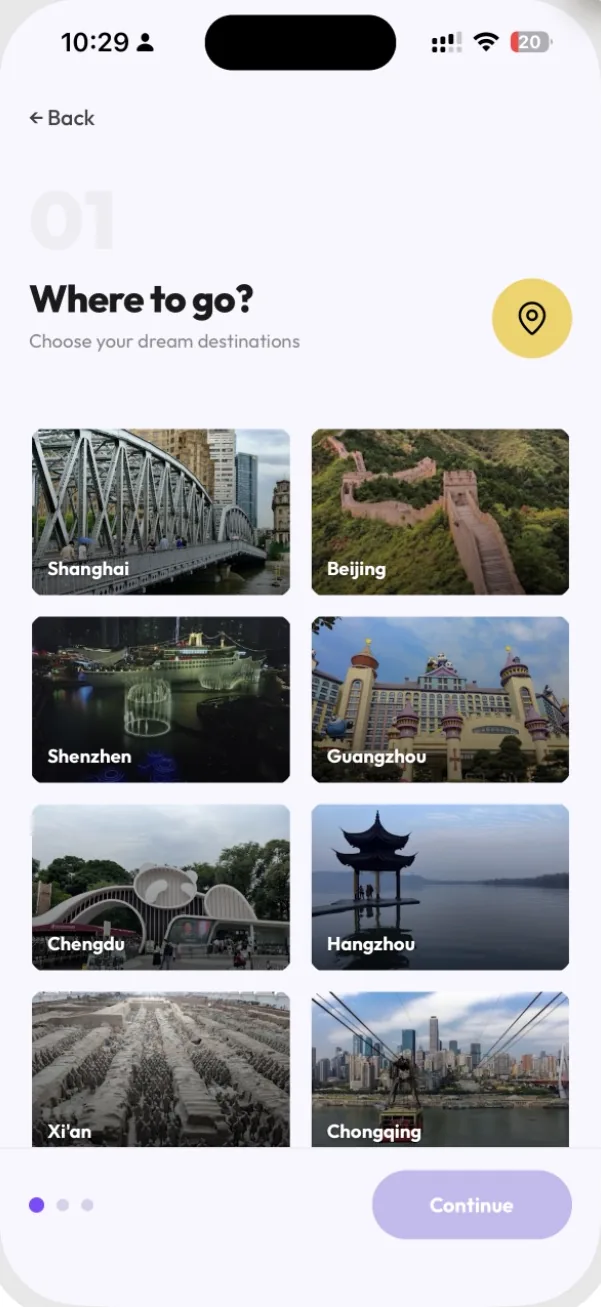
Choose where you want to go
The first setup screen is Where to go? Select your destination from the city cards, then tap Continue. For this example, select Shanghai.
Starting with one city makes your first plan easier to evaluate. You can ask a concrete question: does this give me three days I would enjoy? If you already have an international flight or hotel booking, use those commitments to guide your destination choice.
The city cards are a starting point for the itinerary. Selecting a destination does not reserve transport or accommodation.
Select interests that match your trip
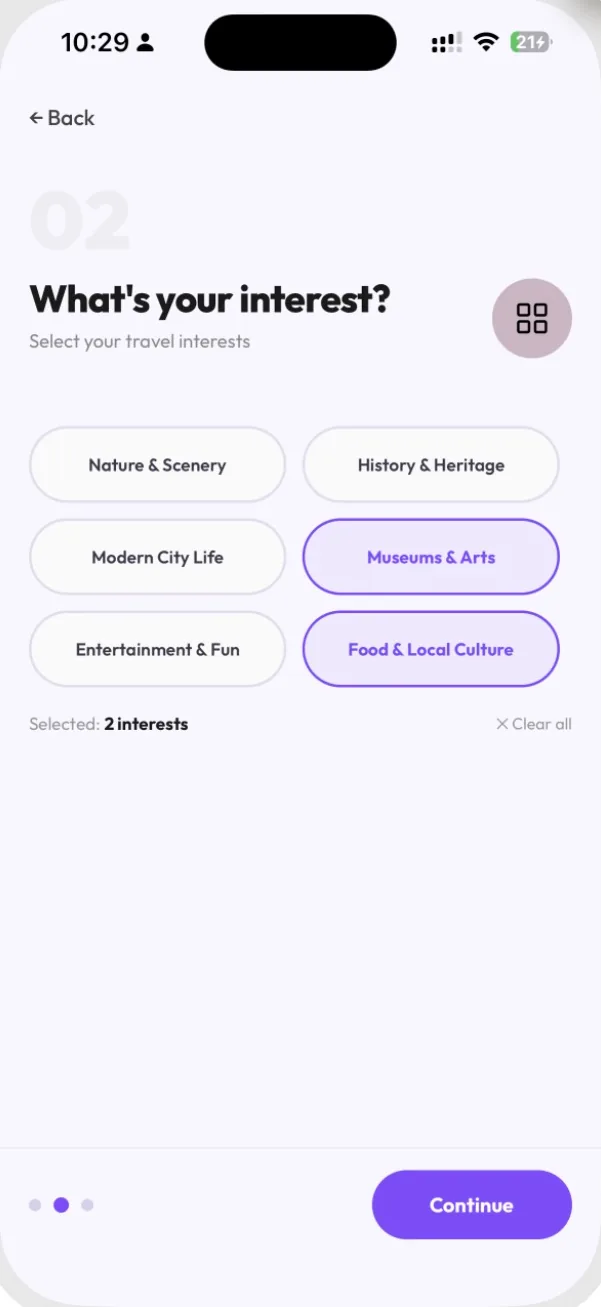
Next, What's your interest? presents six choices: Nature & Scenery, History & Heritage, Modern City Life, Museums & Arts, Entertainment & Fun, and Food & Local Culture.
For the demonstration, choose Museums & Arts and Food & Local Culture. Review the selected interests, then tap Continue.
Choose what you would actually make time for. A museum-focused traveler and someone looking for food and street life may enjoy the same city very differently. A small, deliberate selection gives you a clearer basis for assessing the result than selecting every category.
Set the dates and generate your plan
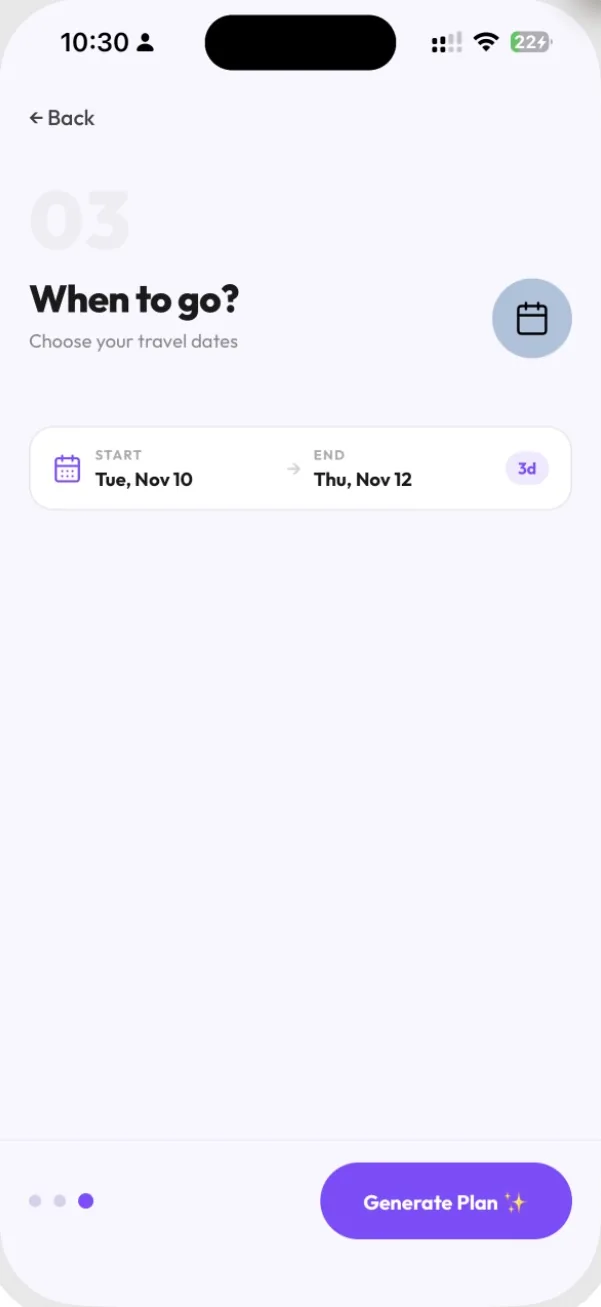
The third screen is When to go? Tap the date field to open the calendar, choose the start date and then the end date. In this example, 10 November through 12 November is displayed as 3d.
Check both endpoints and the day count before tapping Generate Plan. Think about how much usable time you have on the first and last days. An evening arrival leaves less sightseeing time than a morning arrival, even if both fall within the same date range.
The app then shows generation progress, including searching travel sources, generating the plan and finalizing the trip. Let the process finish before reviewing the result. Generation time can vary; the screenshots show one demonstration rather than a promised completion time.
Read the result as a first draft of your trip
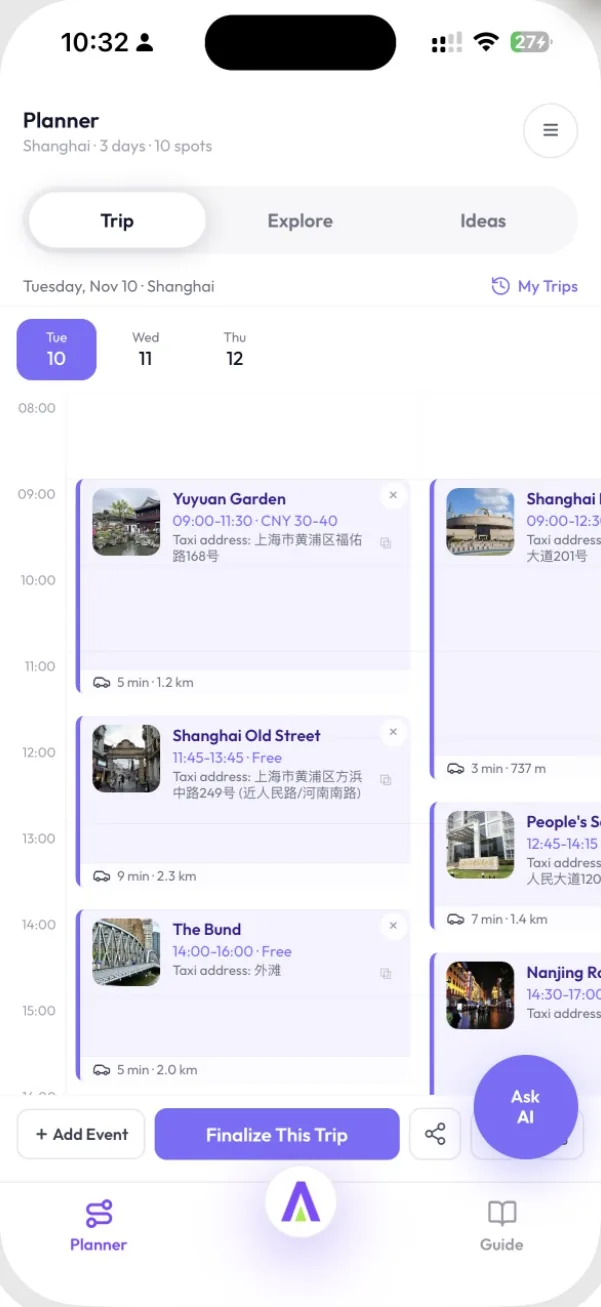
The demonstration generated a three-day Shanghai plan with 10 spots. In Trip, the screen shows date tabs and a timetable, with place cards containing scheduled times and taxi addresses. Explore and Ideas provide separate areas for browsing and collecting places. On first use, follow the in-app introduction or use Skip tutorial to return to the plan.
Once the plan is ready, review the daily structure before committing to individual stops. Start with the overall pace: how many major activities are suggested, where meals fit and whether you have space for travel between locations.
- Check your priorities. Does the route reflect the interests you selected?
- Check the first and last days. Allow for arrival, check-in, luggage and departure.
- Check fixed commitments. Compare the plan with existing bookings and appointments.
- Check the practical details. Verify current opening times, reservation requirements and transport for the stops you intend to keep.
A generated plan helps you organize choices. Tickets, accommodation and other reservations still need to be confirmed separately.
Ask one specific follow-up question
Tap Ask AI to open the trip conversation, then use the Ask about your trip… question box to ask about a particular part of the plan. Start with one request that gives the assistant a clear constraint. For example: “I arrive in Shanghai at 6 pm on the first day. What should I move to another day?”
That is a suggested question, not a recorded assistant response. Read the answer and check what, if anything, changed in the itinerary before relying on it. Do not assume a message automatically changes a booking or confirms availability.
For a deeper review of pacing, see how to assess a realistic daily sightseeing plan. When the route feels right, move to the China pre-departure checklist for payments, connectivity and arrival preparation.